
IRCC login — signing into your Canada immigration account
If you have applied for a Canadian visa, study permit, work permit, or PR, IRCC gives you an online portal to track the application, upload requested documents, pay fees, and read decision letters. The login flow has been changed several times over the past decade. Official guidance is scattered across half a dozen canada.ca pages. This is the practical version: where to actually go, how the two login options differ, what to do when you cannot get in, and how to spot the fake login sites that catch hundreds of people every month.
The official URL — bookmark this one
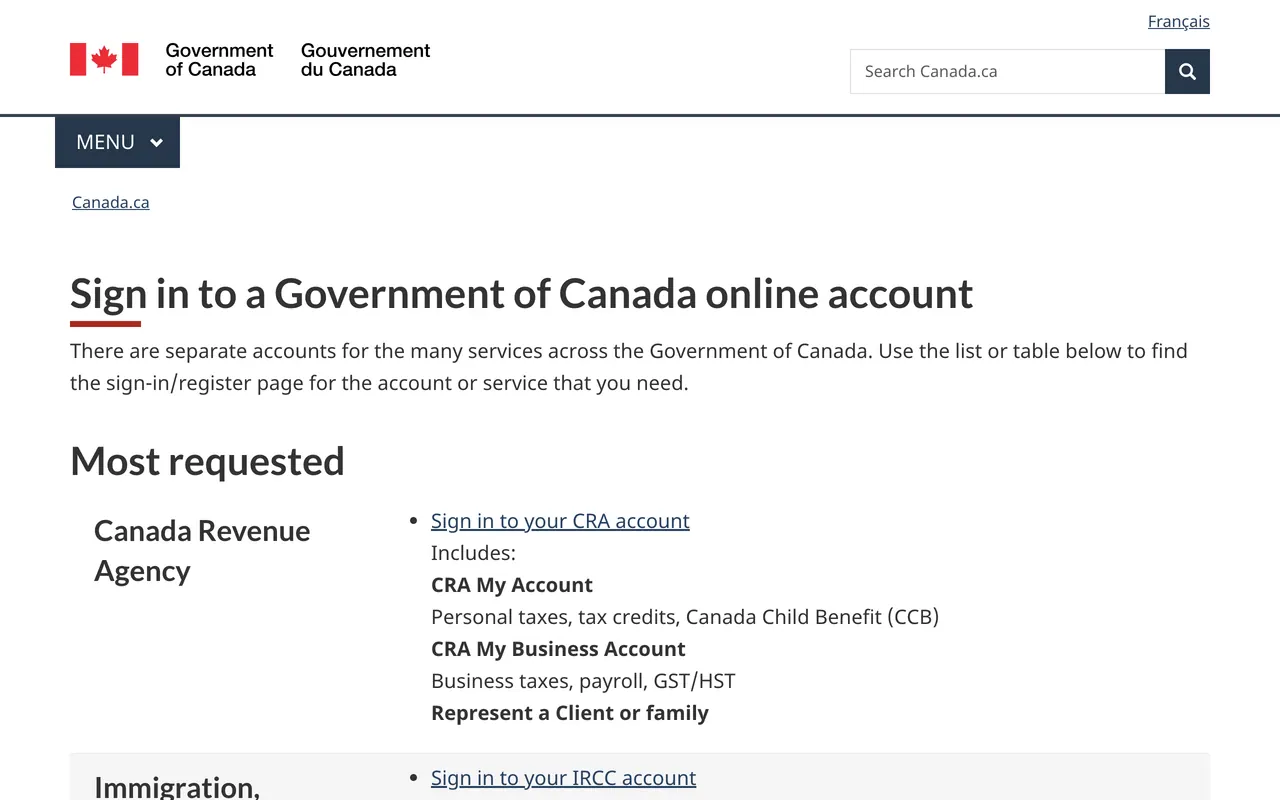
There is exactly one canada.ca page that takes you to the real IRCC sign-in screen:
https://www.canada.ca/en/immigration-refugees-citizenship/services/application/account.html
Type it. Bookmark it. Do not click "IRCC login" links in emails or text messages — every IRCC phishing attempt I have ever seen reported has come through email or SMS pretending to be from the government. The real IRCC never sends you a clickable login link. They tell you to log into your account at canada.ca, period.
The two ways in
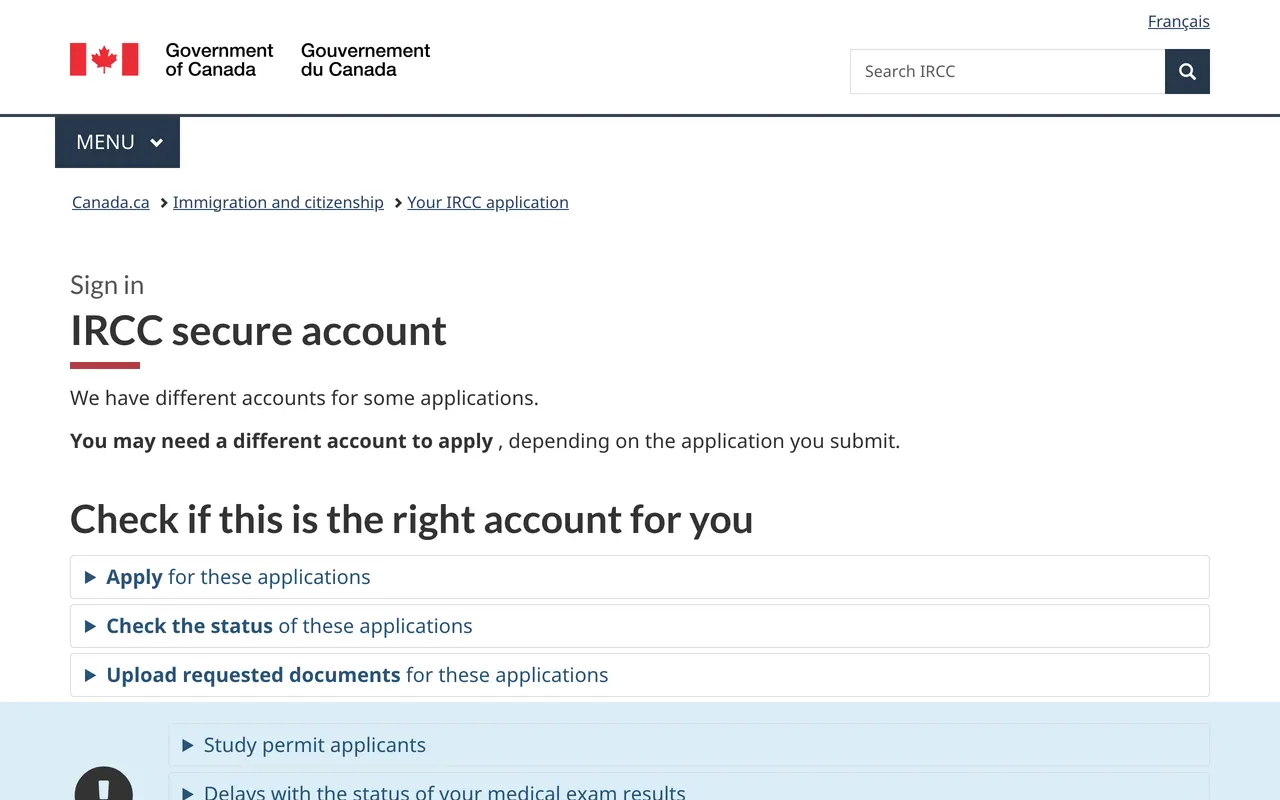
IRCC accepts two login methods. Both connect to the same account, so the choice is just whichever credential you would rather remember.
Sign-In Partner uses your online banking credentials. If you already bank online with BMO, CIBC, Desjardins, National Bank, RBC, Scotiabank, TD, Tangerine, Affinity Credit Union, Alberta Treasury Branches, or one of the other listed credit unions, you can log into IRCC with the same username and password you use for the bank. The bank doesn't share your password with IRCC; it just confirms to IRCC that you are who you say you are. For most Canadians who already bank online, this is the simplest option.
GCKey is the Government of Canada's general-purpose login. You create a GCKey username and password specifically for federal services. The same credentials work for IRCC, CRA, ESDC, ServiceCanada and a long list of other agencies. If you do not have a Canadian bank account, or you would rather not link your banking to IRCC, this is the route.
Either way, the password is yours alone. Do not share it with consultants, family members, or anyone claiming to be from IRCC.
Registering a new account, end to end
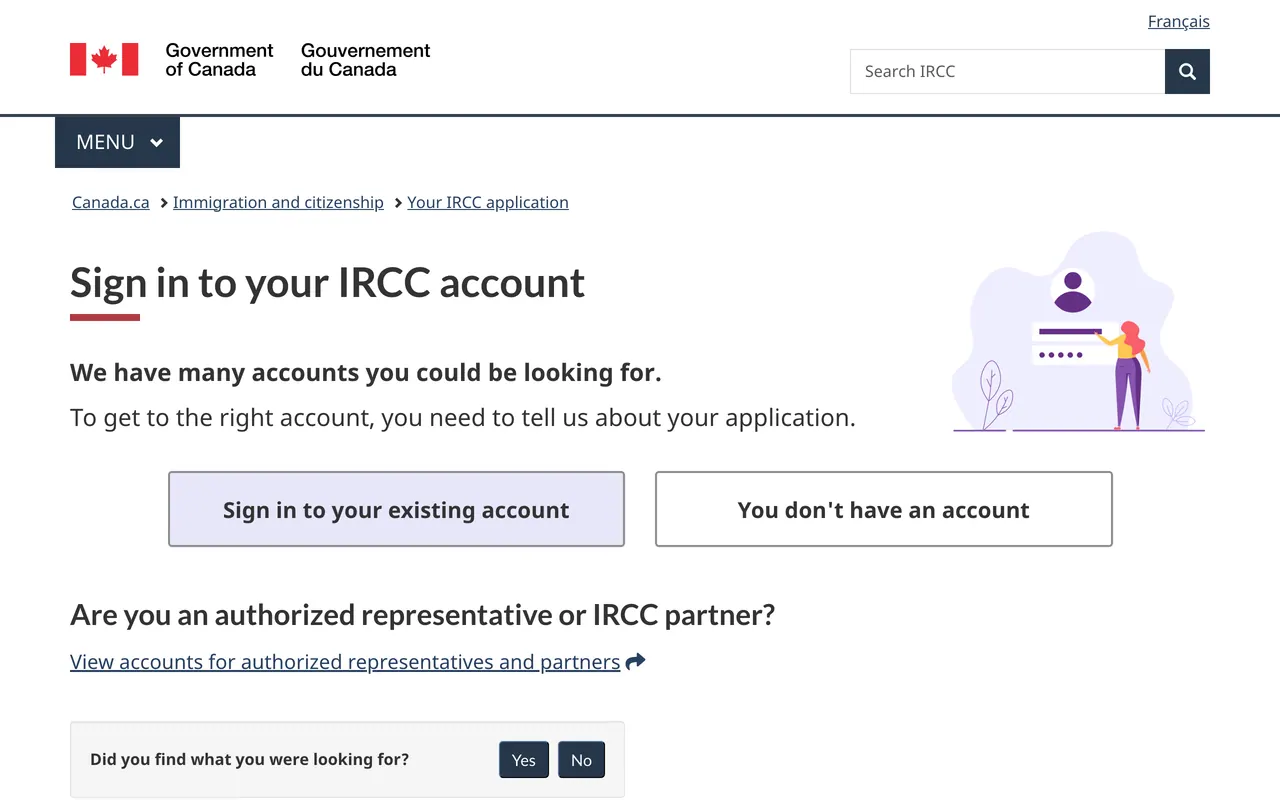
If you have never logged in before, you need to register an account. The first-time setup takes about ten minutes if everything goes smoothly. The real sequence:
- Go to the canada.ca account page (link above).
- Click Sign in to or create an account.
- Choose Sign-In Partner or GCKey.
- If you went GCKey: click Sign Up, choose a username (case-sensitive, 8 to 16 characters, cannot include your name or email), and choose a password (12 to 16 characters with at least one uppercase letter, one lowercase letter, and one number). Set up two recovery questions, and write the answers down somewhere safe — if you forget them, recovery is genuinely painful.
- If you went Sign-In Partner: pick your bank from the list. You will be redirected to the bank's own login page, log in there with your normal banking credentials, and the bank will bounce you back to IRCC with confirmation.
- IRCC will then ask a small set of personal questions: name, date of birth, email address, country of residence. Fill those in.
- You will get an email with a multi-factor authentication (MFA) one-time code. Enter it. From this point onwards, every login requires both your password and an MFA code that arrives by email.
What you can do once you are inside
The portal is plainer than people expect. Once you are logged in you see a single dashboard with five things on it: existing applications you have submitted, a list of new applications you can start, a messages inbox where IRCC sends document requests and decisions, a document upload section that only appears when IRCC has actually requested something, and a payment history.
A few practical notes from watching people use this thing for years:
- Status changes are not always good news. In process is the default and means very little. Decision made is the meaningful one — when that appears, refresh and look for the letter in your messages tab.
- Document requests have a deadline. IRCC gives you 30 days, 60 days, or sometimes 7 days. Miss it and the application can be refused for non-response. The portal does not warn you until the day-of.
- The portal logs you out after about 20 minutes of inactivity. If you are typing a long form, draft it in a separate document first.
- The "linked applications" feature lets you see family members' applications under your account, but only if the family member explicitly links them. Spouses do not share an IRCC account by default, even on a family-class sponsorship.
When you can't get in
Most login problems fall into a small set of patterns, and the fixes are unfortunately also pretty patterned. Here's what to do for each.
Forgot your GCKey username. Use the GCKey recovery link on the login page. It emails the username to the address you registered with. If you no longer have access to that mailbox, you have to phone GCKey support at 1-855-438-1102 — they can recover the username but not the password.
Forgot your password. Use the GCKey password reset link. A reset link goes to your registered email and expires after 24 hours, so do this when you have time to actually follow through.
Forgot the answers to your recovery questions. This is the painful one. There is no automated recovery — you have to call GCKey, prove your identity over the phone (they ask about past addresses, your IRCC application number, sometimes the names of past employers), and they reset everything from their end. Plan for a 30-minute call. Have your application number, passport, and a quiet room.
Account locked from too many wrong attempts.GCKey locks the account after five failed attempts. The lock auto-clears after 15 minutes; nothing else needs to happen. If you're under a real deadline, just wait it out — calling support cannot speed up the timer.
MFA code never arrived. Check spam first. Try the "send another code" button (60-second cooldown). If repeated attempts fail, the cause is almost always your email provider filtering canada.ca. Add do-not-reply@cic.gc.ca and any sender ending in @gccollab.gc.ca to your contacts list, then try again.
Sign-In Partner just won't work.When the bank-redirect step fails, it's almost always because the bank's own federation service is having a momentary outage, not IRCC. Try GCKey instead. If you don't have one, give it half an hour and try the bank flow again.
"Account suspended for security reasons."IRCC suspends accounts when it sees unusual activity — logging in from a country you've never used before, several failed MFA attempts in a row, or rapid changes to account settings. Call IRCC client support at 1-888-242-2100, application number in hand, and they can usually unlock it on the call.
Phishing scams — how to spot them
Reports to the Canadian Anti-Fraud Centre about IRCC-related phishing have been heavy and the pattern is consistent. The fake email or text usually says something like "your IRCC application requires verification, click here to sign in," or "your visa decision is ready, log in to view," or "suspicious activity detected on your account, verify identity." The link in the message goes to a site that looks like canada.ca but the URL is off by a letter or two: canada-ca.com, ircc-canada.org, gov-canada.net, cic-gc-ca.com, and so on. The login page on the fake site looks almost identical to the real one. You enter your GCKey username and password. The attacker then logs into the real canada.ca with your credentials and accesses your application data.
What protects you:
- IRCC never emails you with a clickable login link. Real IRCC notifications say "log into your account at canada.ca" with no clickable link to follow.
- Type canada.ca directly into the address bar, or use a saved bookmark you created yourself.
- The real canada.ca always has
canada.caorcic.gc.caas the actual domain. Check the address bar before entering a password. Anything else is fake. - The padlock icon in the browser confirms HTTPS but does not confirm the site is real. Phishing sites have HTTPS too.
- MFA helps but is not perfect. A determined attacker can intercept MFA codes via SIM-swap fraud. The real defence is not entering your password on a site you do not trust.
If you have already entered your password on a fake site:
- Go to the real canada.ca portal immediately and change your GCKey password.
- Change your email account password too, in case the same credentials were reused.
- Report the incident to the Canadian Anti-Fraud Centre at 1-888-495-8501 or via antifraudcentre.ca.
- Watch your bank statements and credit card transactions for unusual charges. Phished IRCC credentials sometimes correlate with later attempts at bank fraud, because attackers harvest both at the same time.
Mobile vs desktop
The IRCC portal works on mobile browsers (Chrome, Safari, Firefox), but the document upload step is genuinely awkward on a phone. If you are uploading PDFs or photos for an application, do it from a desktop or tablet. The phone version is fine for checking status and reading messages, but anything that needs file uploads is much faster on a real keyboard.
There is no official IRCC mobile app. Anything claiming to be one is fake. Apple App Store and Google Play have removed several fraudulent IRCC apps in the past, but new ones appear every few months. If a friend tells you about an "IRCC mobile app," it is not real.
Things people ask about that aren't obvious from canada.ca
Can I share my IRCC account with a family member or consultant?Officially no. The terms of use forbid sharing credentials, and IRCC has flagged accounts that log in from multiple unusual locations or device fingerprints. If you have a representative, they should use their own representative account and link to your application via the "Use a Representative" form (IMM 5476).
Can my consultant or lawyer submit on my behalf?Yes. Licensed RCICs and lawyers create their own "Authorized Paid Representative" account on the IRCC portal, link to your file via IMM 5476, and submit on your behalf. They never need your password.
I created two accounts by accident. How do I merge them?You can't — not automatically. You have to call IRCC client support at 1-888-242-2100, explain the situation, and they will mark one account as primary and route everything there. Keep both sets of credentials handy when you call.
The portal says my application doesn't exist. Why? Two common reasons. First, you submitted the application under one login method (Sign-In Partner) and are now logging in via the other (GCKey). Pick the one you originally used. Second, the application was submitted on paper and has not been digitised. Paper files are processed offline and never appear in the online portal.
I changed my email. How do I update IRCC?Through the "Account settings" link inside the portal, after you log in. Do not try to update via the old address — IRCC sends a confirmation link to the new one.
Quick reference
- Official portal: canada.ca/account
- GCKey support: 1-855-438-1102
- IRCC client support: 1-888-242-2100
- Canadian Anti-Fraud Centre: 1-888-495-8501
This guide is updated when canada.ca changes the login flow. The last major refresh to the portal was in 2024 when MFA became mandatory for all users. If you spot something here that looks out of date, email seo@ircc.com.
Reminder: the official IRCC portal is on canada.ca. IRCC.com is an independent news site. We do not host login forms and never ask for your password. If anything on this domain ever asks you to enter IRCC credentials, close the tab and report it to the Canadian Anti-Fraud Centre.